This week Google announced Data Fusion, a new cloud-native ETL tool built atop Google Kubernetes Engine and the OSS CDAP project. Pipelines built in this tool are executed on Hadoop, with Dataproc being auto-provisioned and managed for you (or it can be run on your own Hadoop cluster on-prem or in AWS/Azure).
Let’s get started! We’ll start by adding a Google Cloud Storage source….

Then we’ll open the properties and specify the location of the CSV
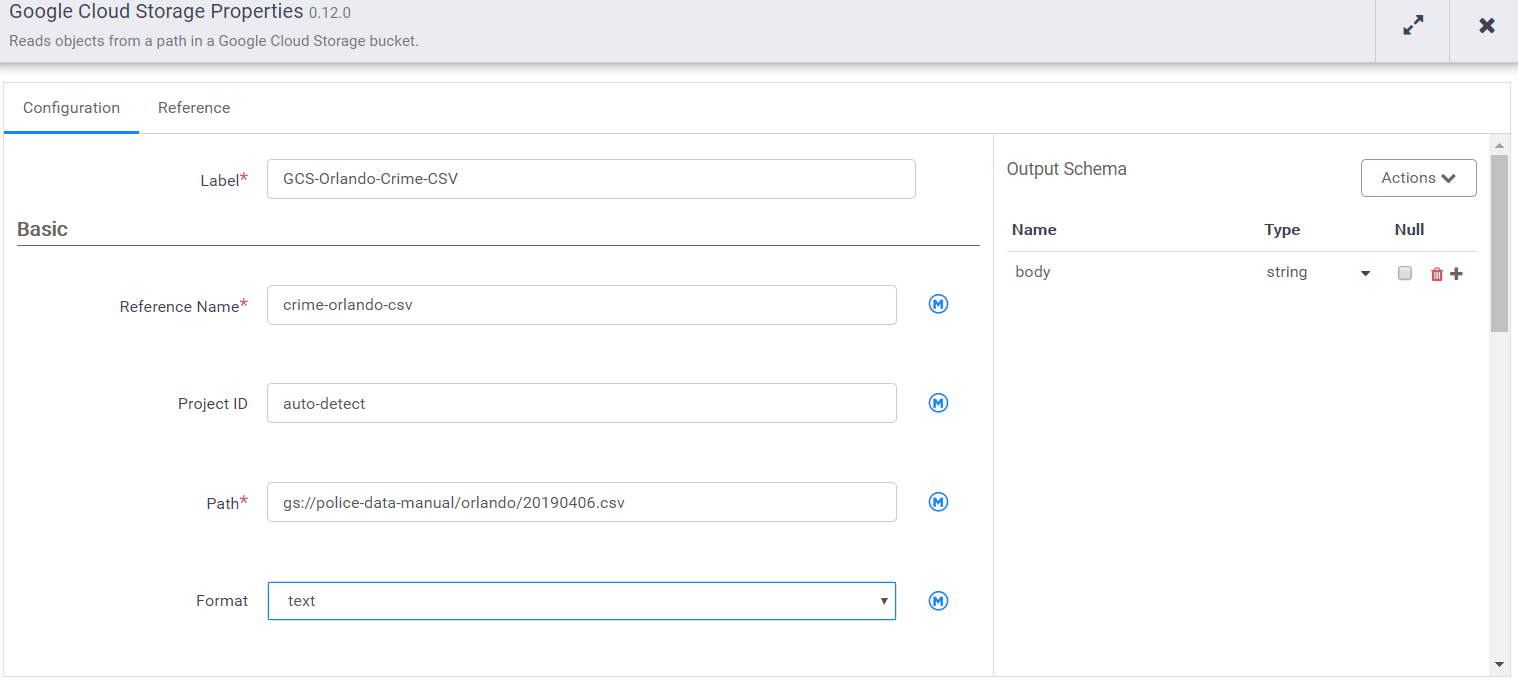
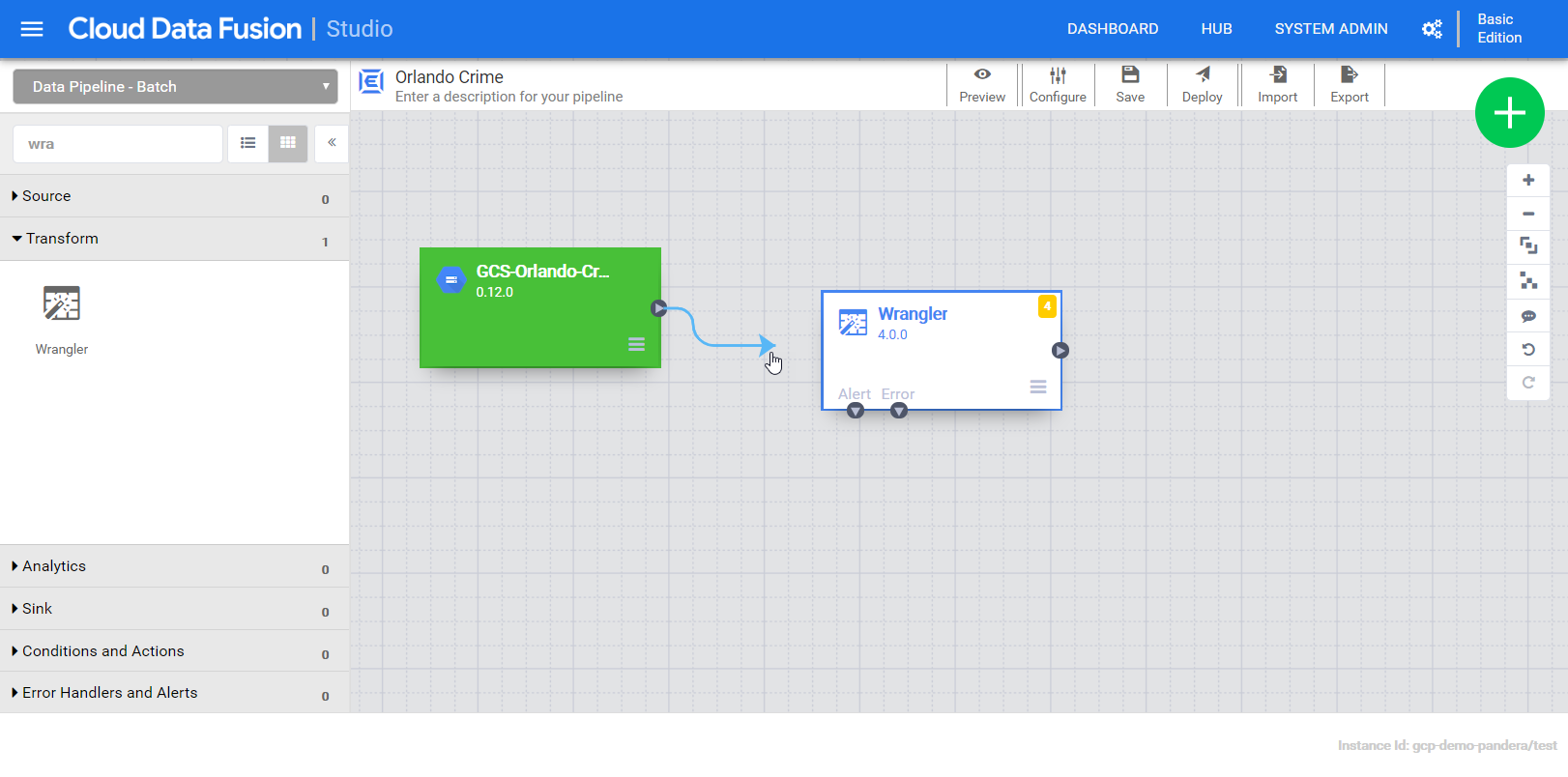
Now our pipeline has one field, “body”, that holds the entire content of the file. Next we add a wrangler to explore the content and define the schema. The output fields from the wrangler will be a the input for the BigQuery sink. Connecting them together establishes that relationship.
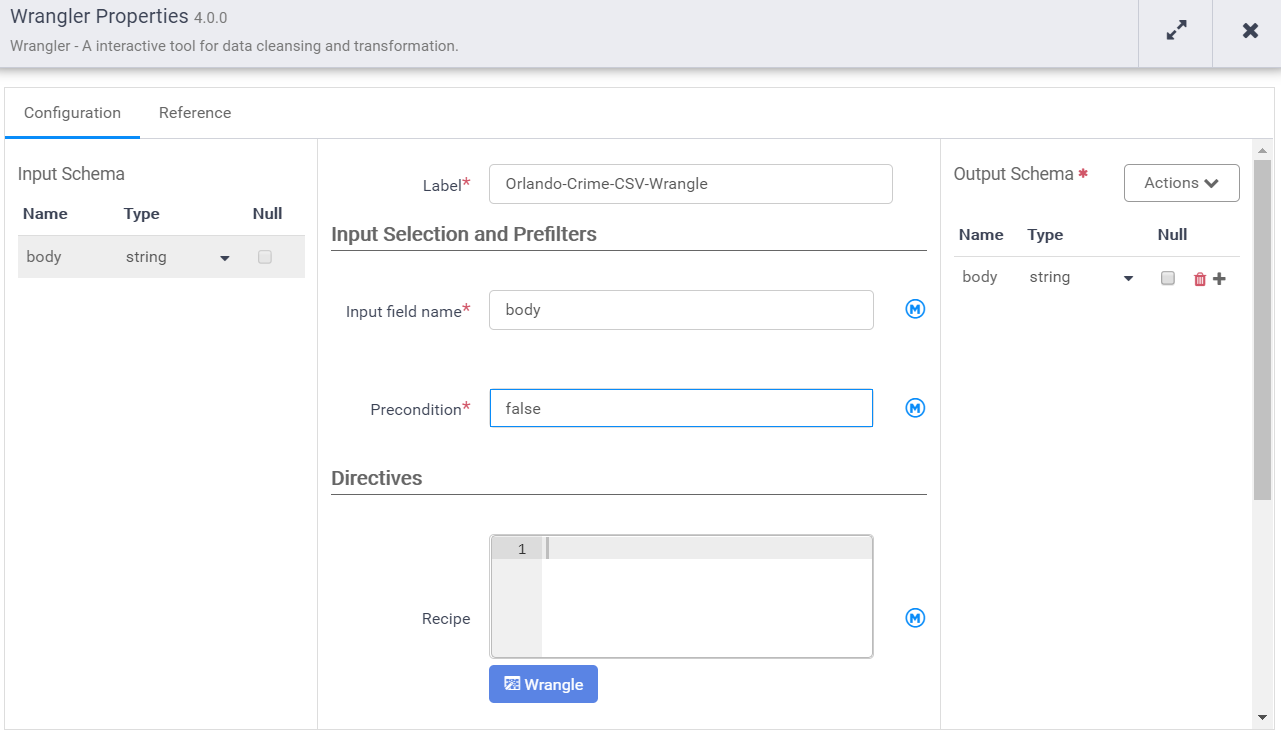
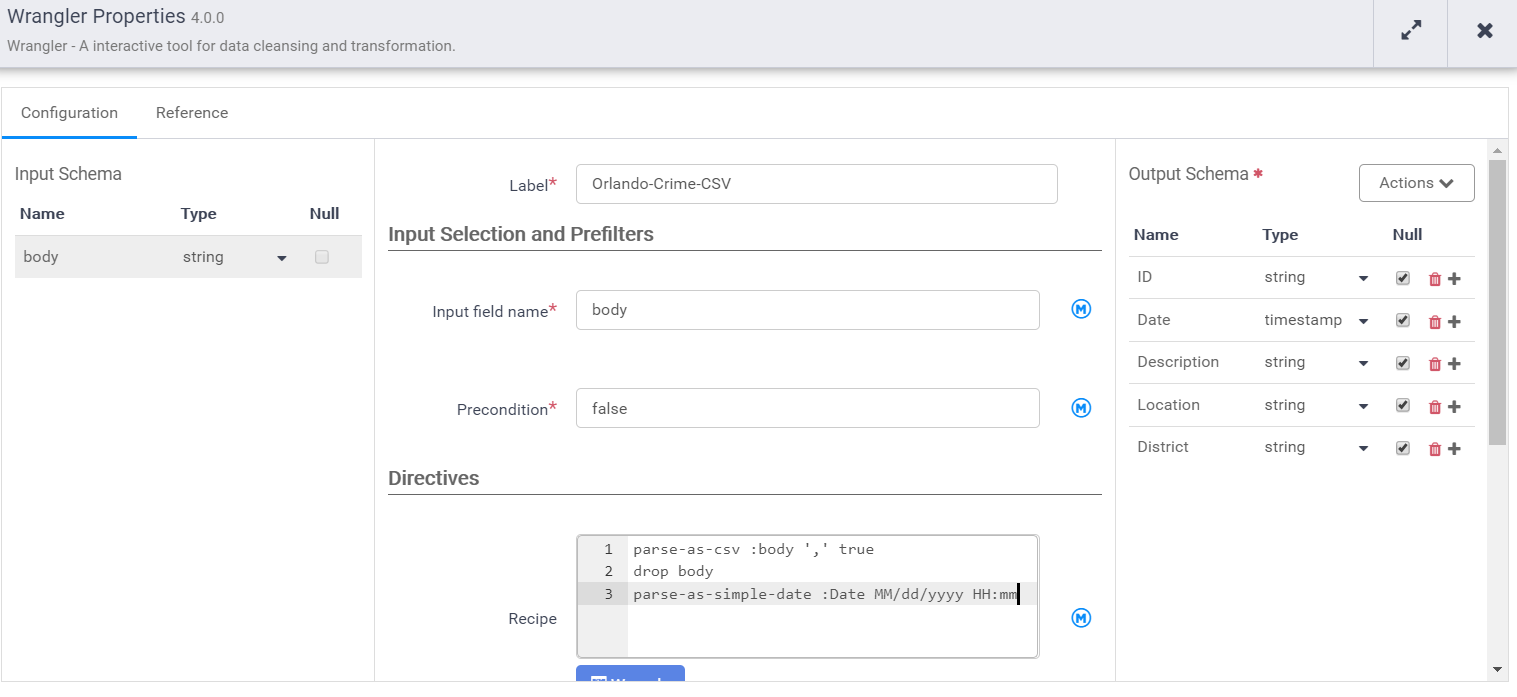
Notice that the input schema is “body” and it’s also the default output schema. We need to give it a label and a name. Then provide our recipe that transforms the input schema to the output schema.
As soon as the wrangle window opens you’ll need to navigate & select one of the CSVs in the source bucket. That is because Data Fusion doesn’t pre-load anything in the pipeline, so we need to go wrangle from the exemplar in the bucket. Once selected we’ll see the one field currently in the schema.
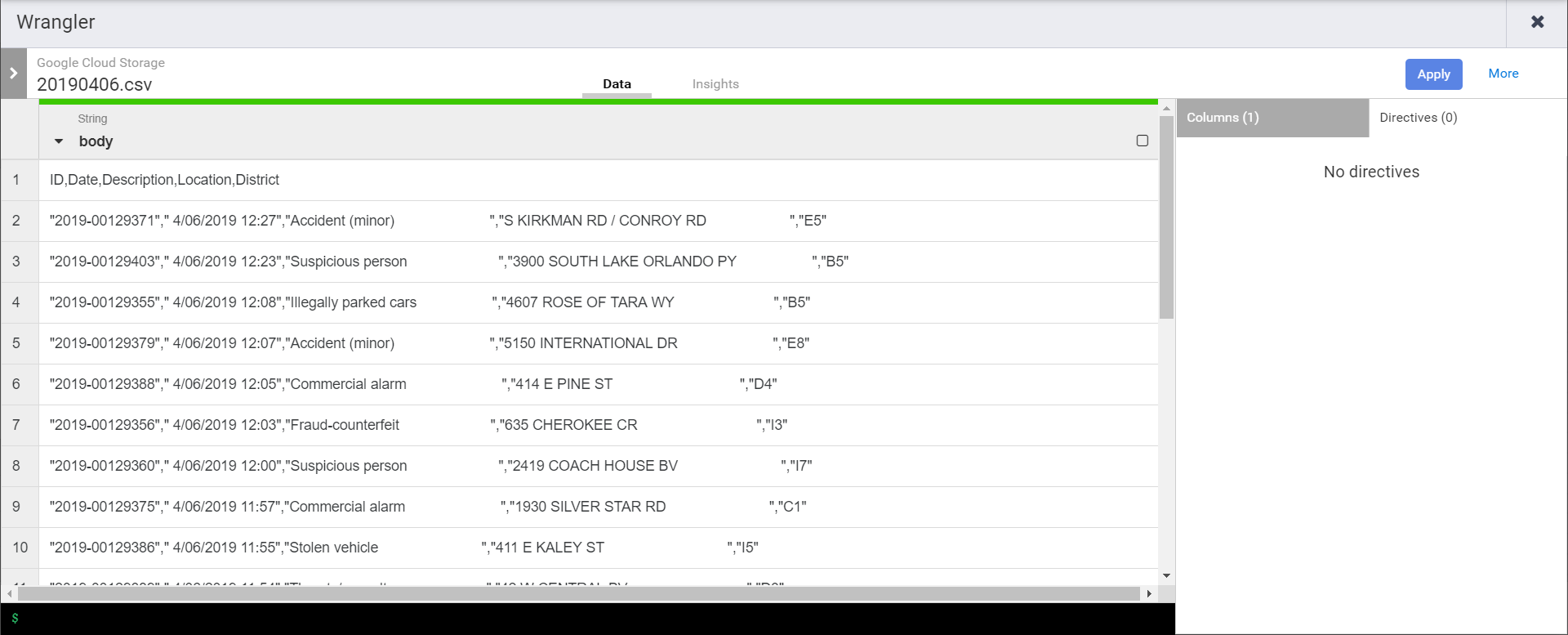
First we’ll need to split the body into multiple fields…

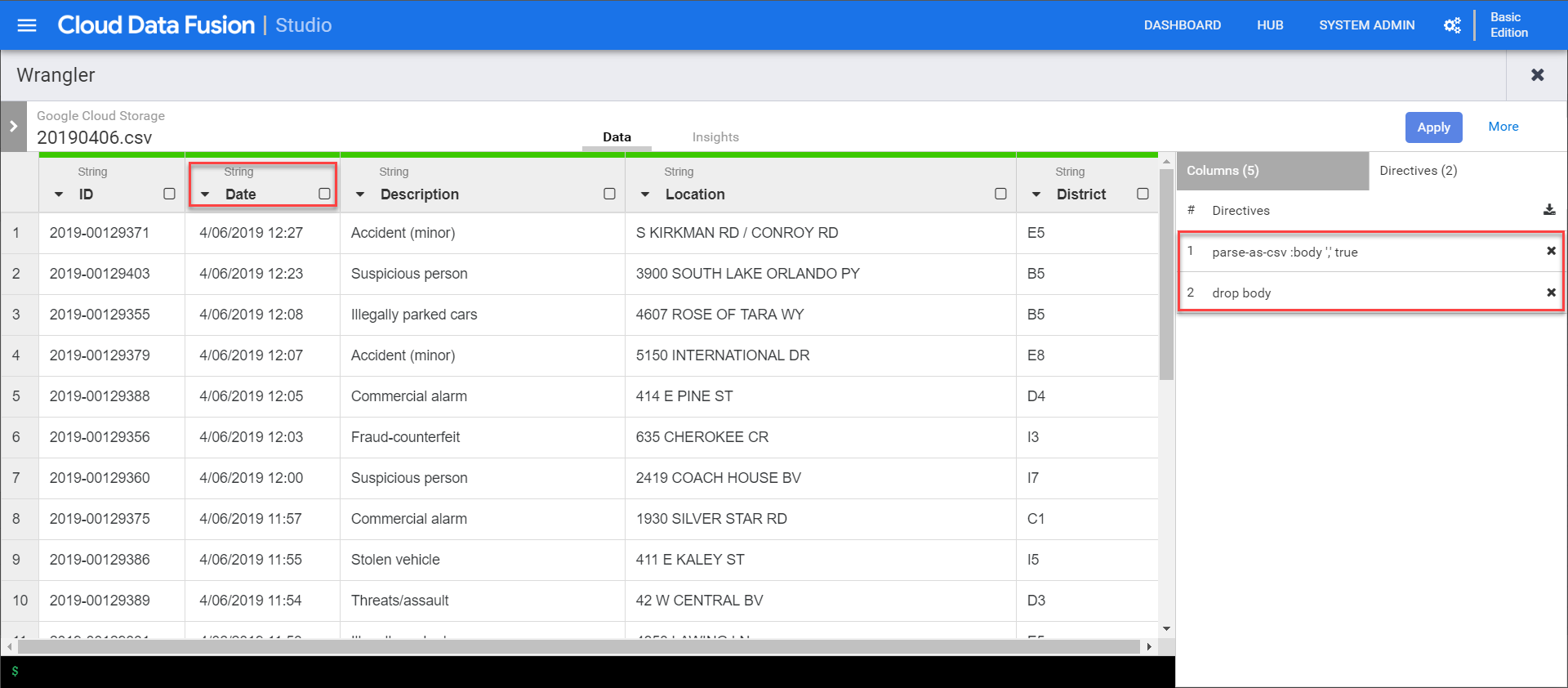
Once applied we can then drop body field…
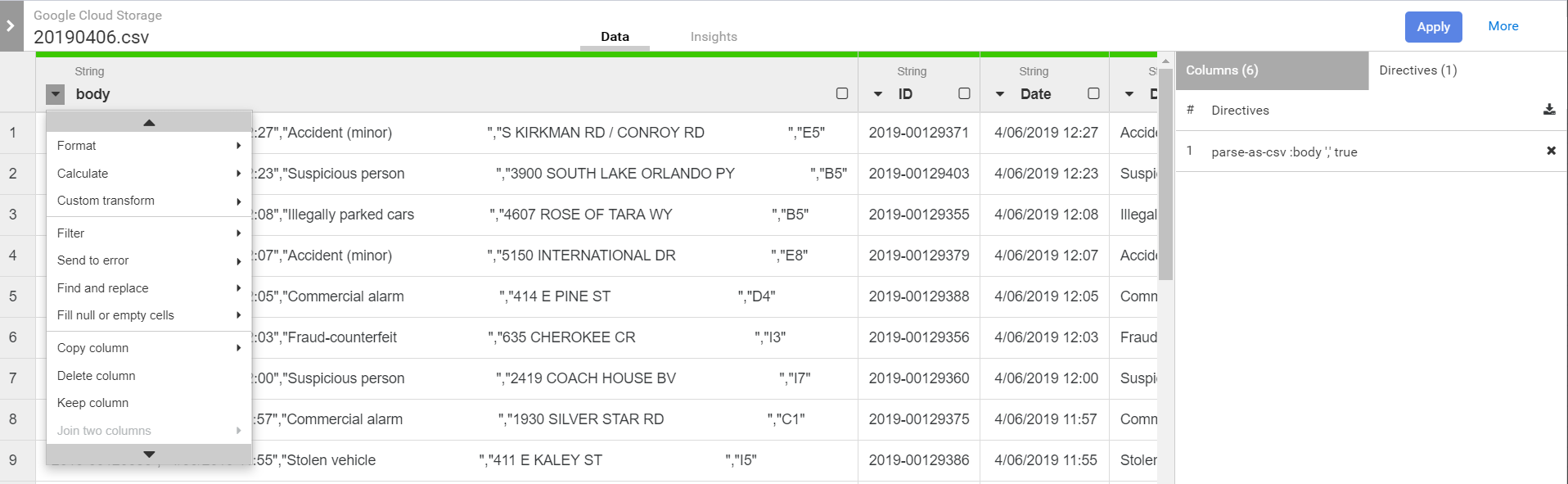
Notice that the columns are all string by default. We’ll need to convert them to their appropriate types. As we do that we’ll see new directives being added to the wrangler.
Once done we can click apply to close the wrangler. The directives are then inserted into the directives recipe in the properties window. That recipe can be shared in the hub or later injected dynamically.
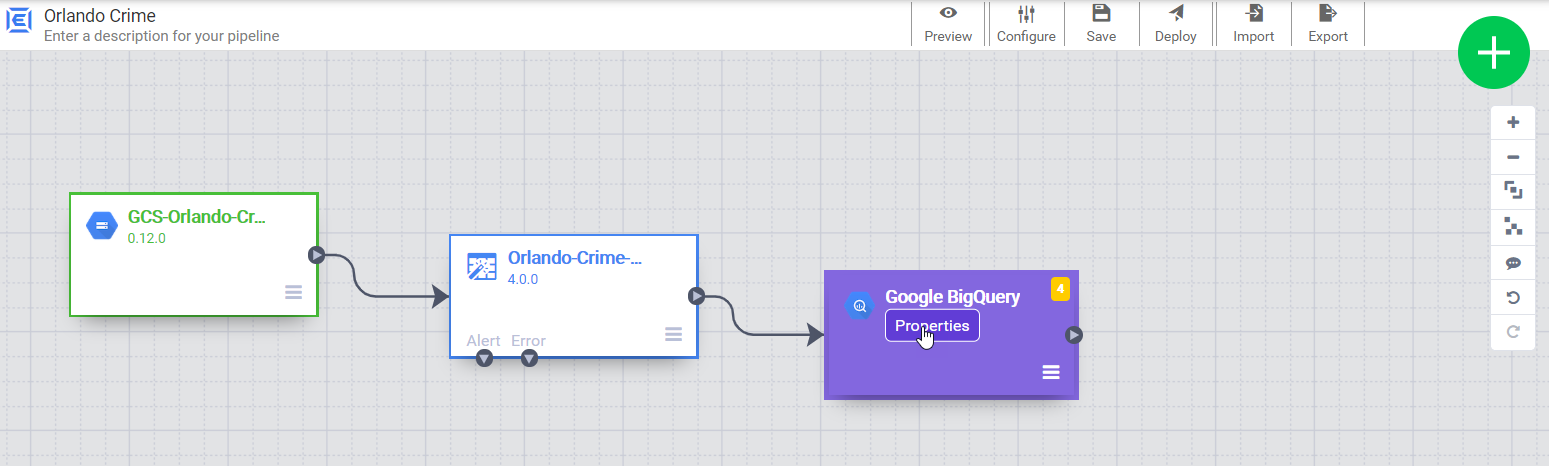
Now we can close the wrangler and add a BigQuery sink to the pipeline. We just need to give it a reference name, which is used to trace lineage (which can impact retention rules).
Time to deploy!
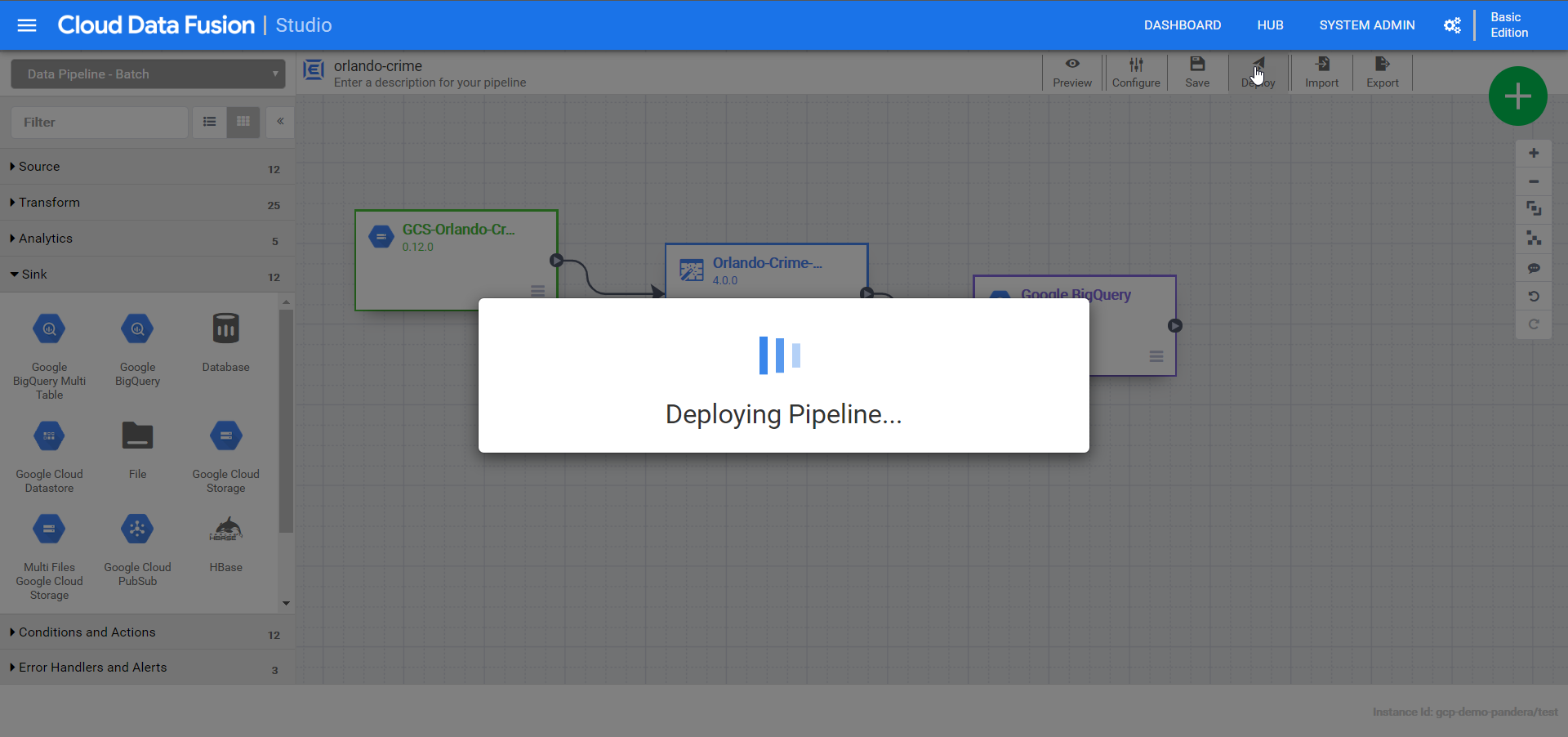
Rats! Got an error with the reference name.

After fixing it and deploying again, I can see the pipeline operations dashboard…
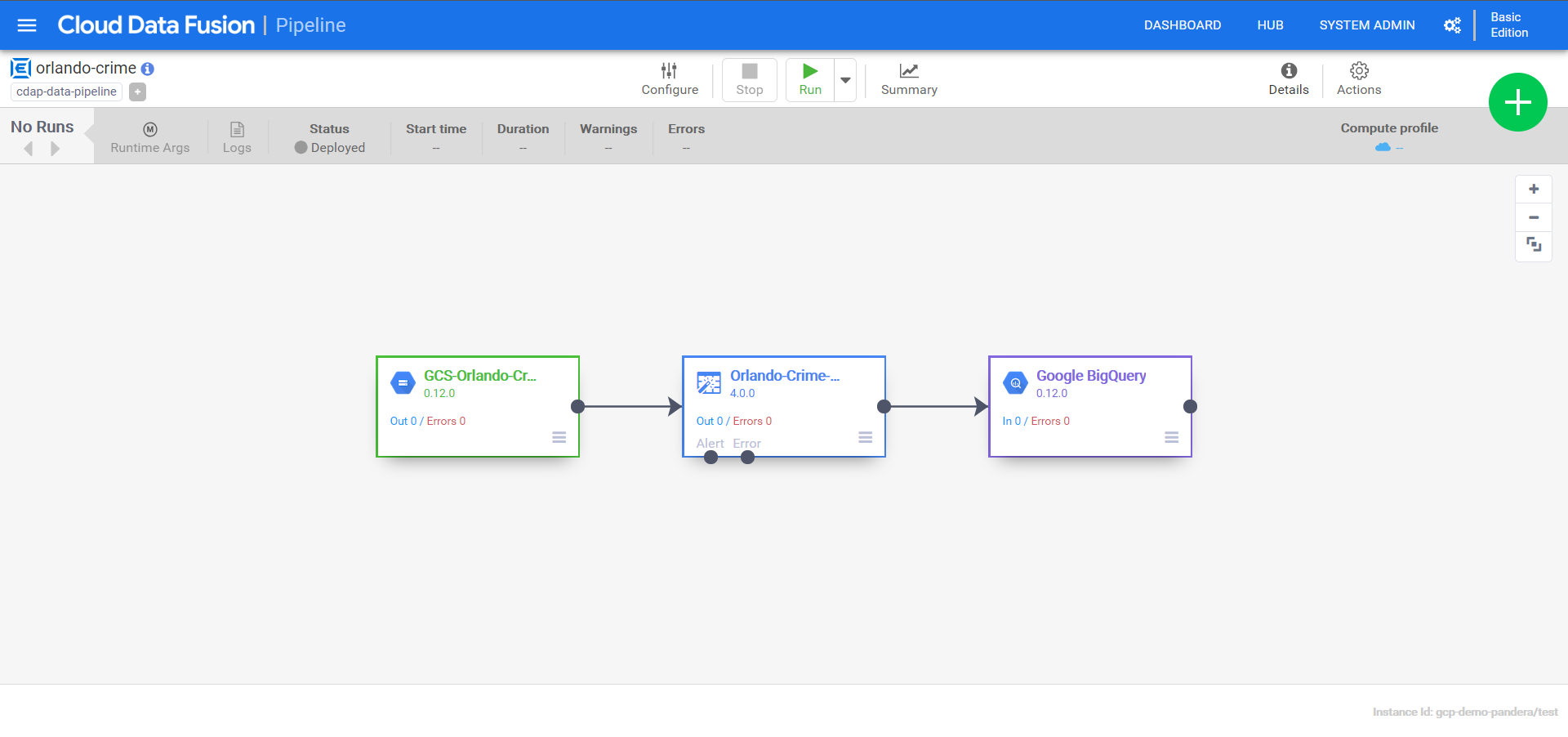
Let’s run this bad boy!!!

More errors! Eventually I’ll get there, just need to update a few permissions. In this case it’s the service account’s ability to spin up a data proc cluster that is the problem. I’ll give the service account Data Proc Admin role and try again. This time it works and I can see the cluster spinning up.
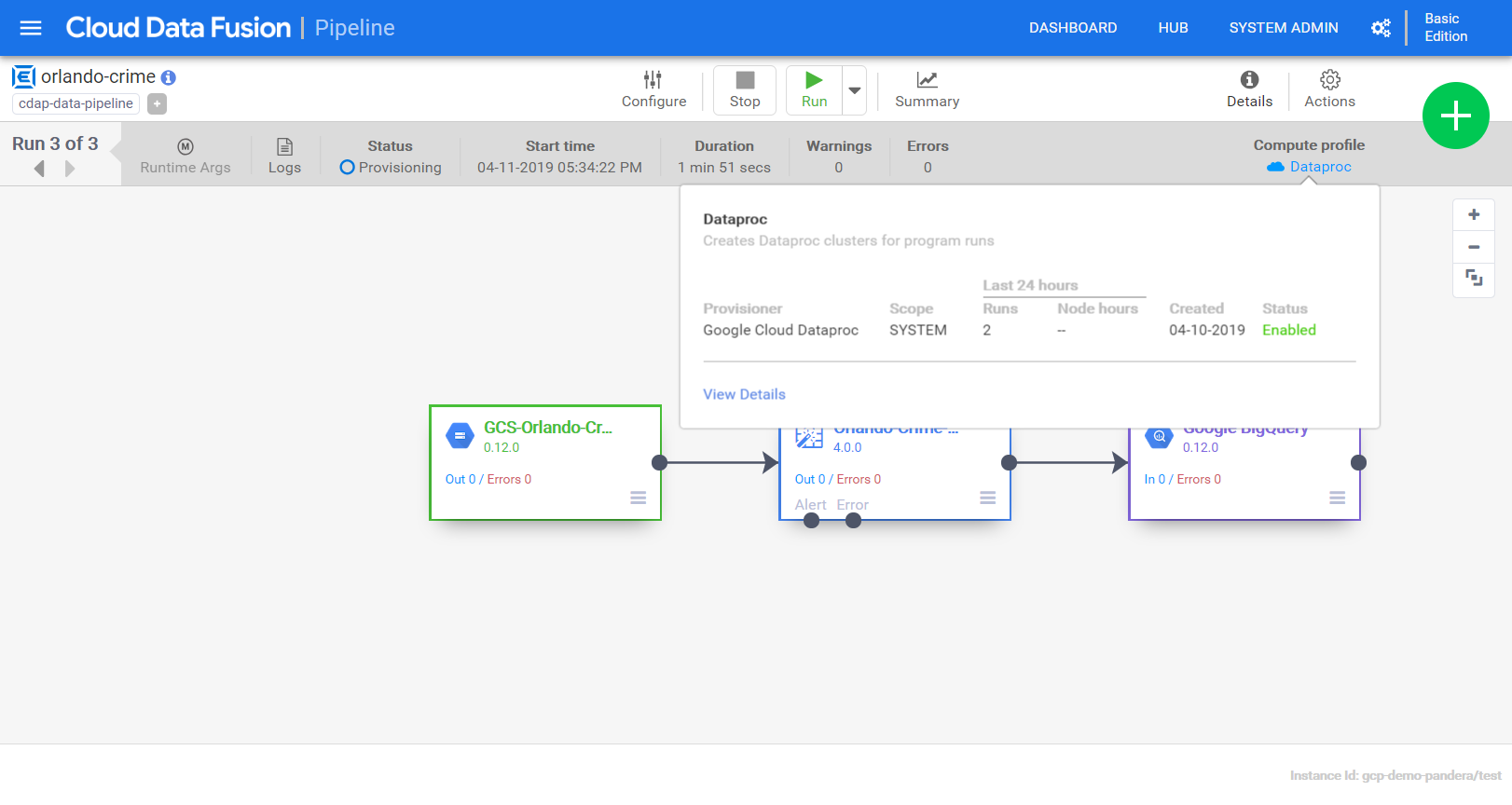
Clicking “View Details” gives me lots of information about the cluster and it’s operations/profile.
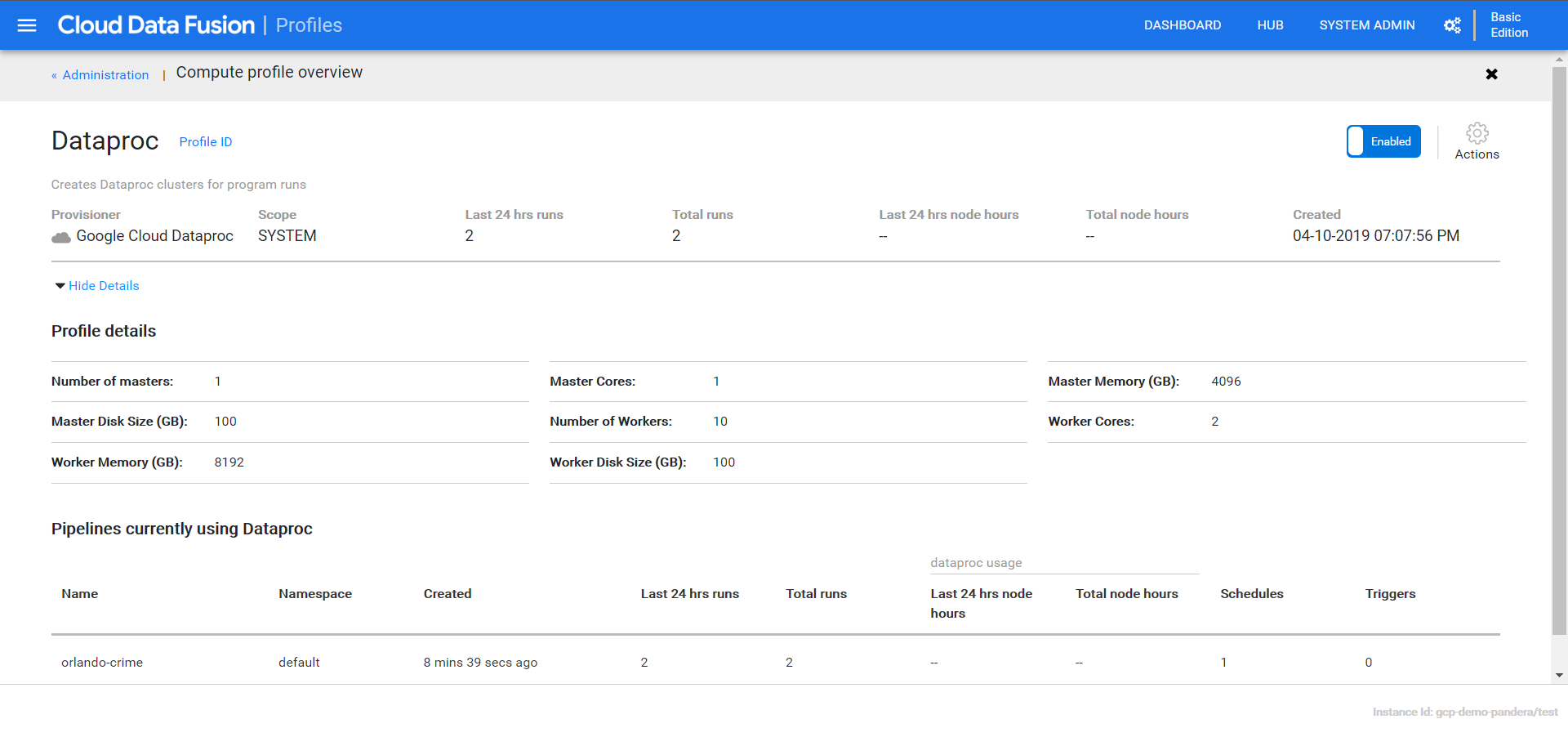
If I flip over to the data proc page I can see more details.
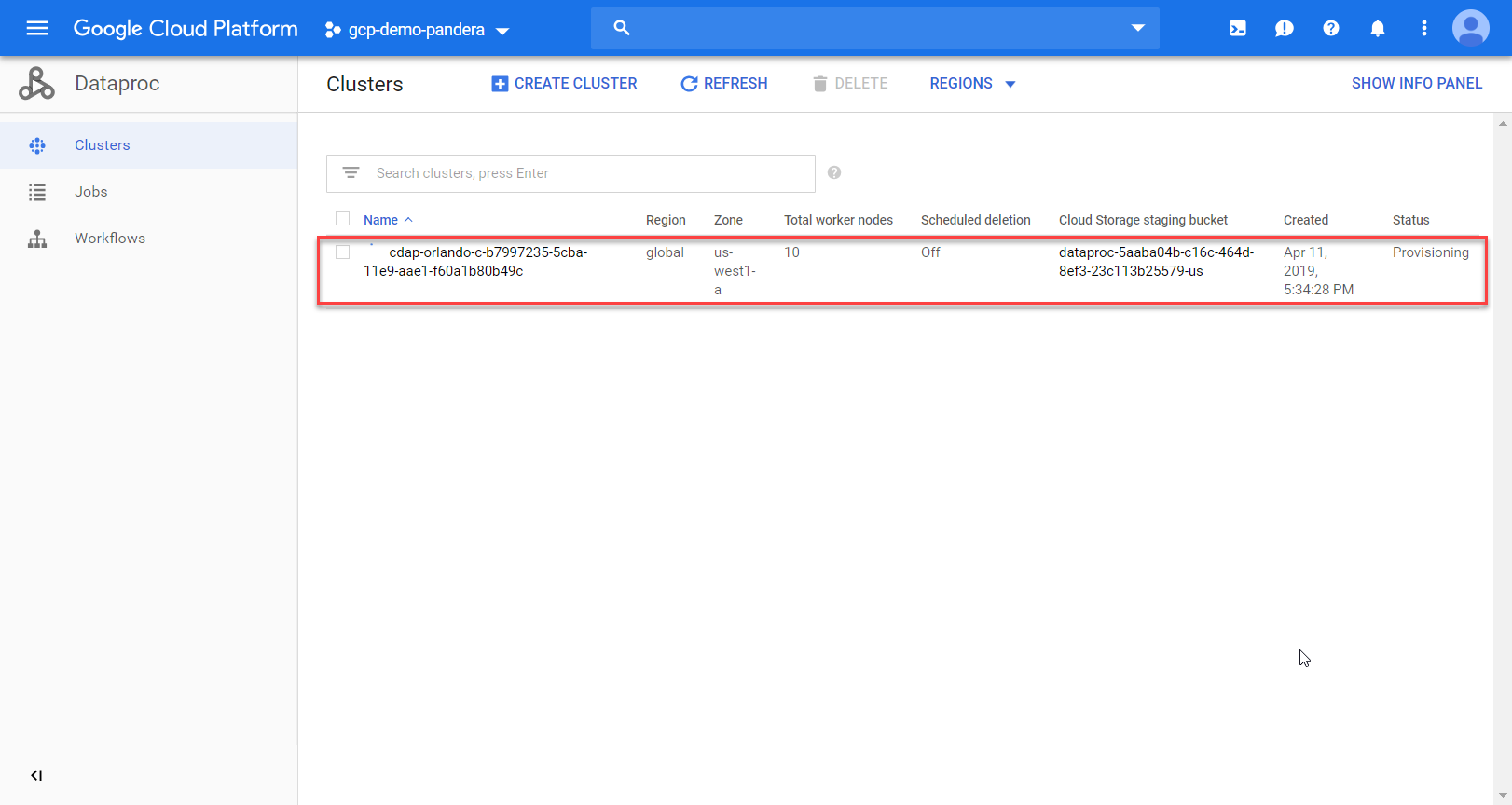
Well crap, another error. This time it says my BigQuery dataset doesn’t exist. I mistakenly put a dash instead of an underscore.

That really sucks. I just paid a few cents to have something spit out an error. Lesson learned though!! Lots of little permissions I didn’t set-up initially. A lesson to tell clients about when delivering training, for sure! For now I’ll fix and run again….

The great part of this is that it will all be torn down once it’s done! Once it’s done I’ll see my data in BigQuery.

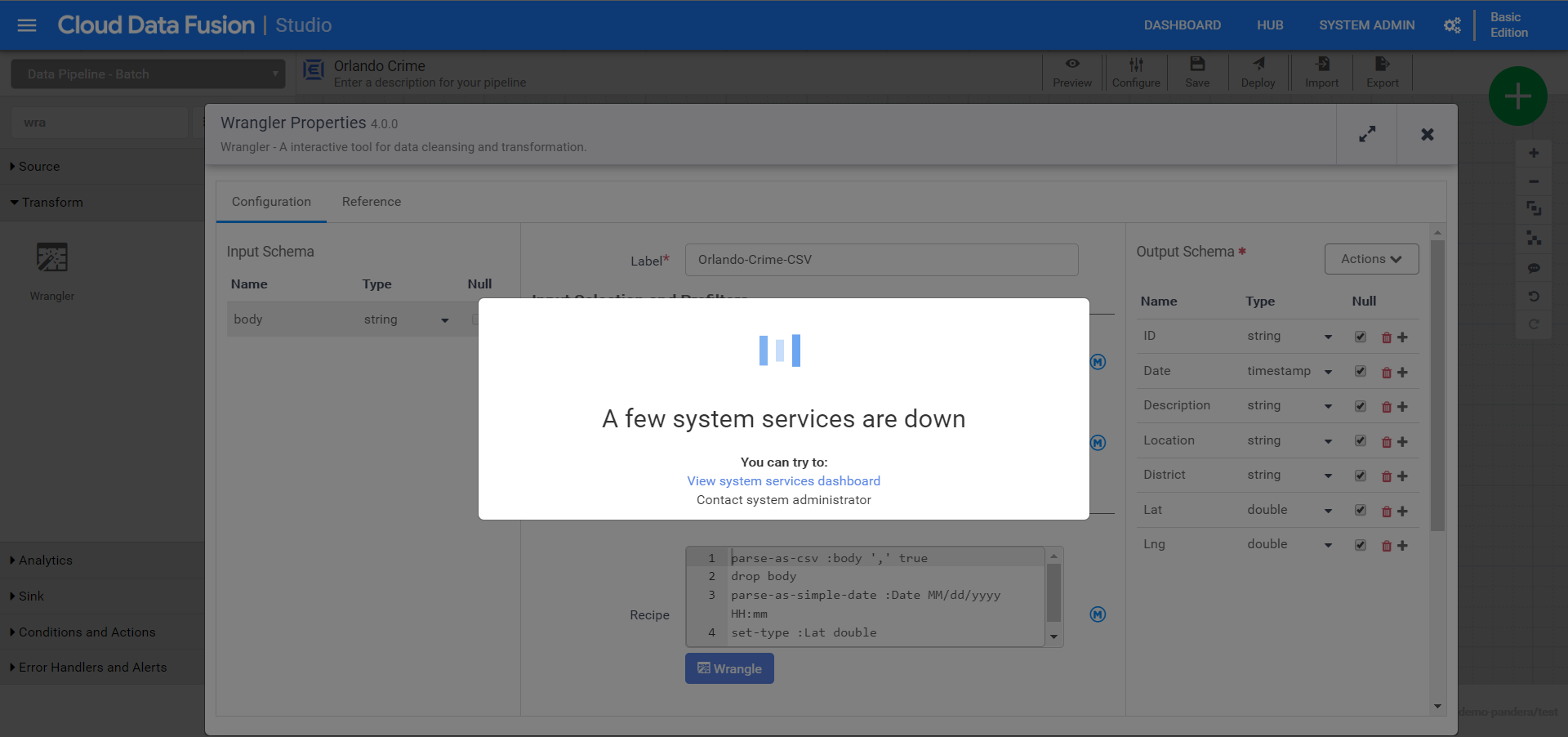
Note you may periodically experience network connectivity issues, which happened to me as I wrote this. Be patient and it’ll come back online!
In the next post we’ll dig into the insights panel, use variables & macros, and import a massive trove of crime data. Until next time!

 Erik's Blog